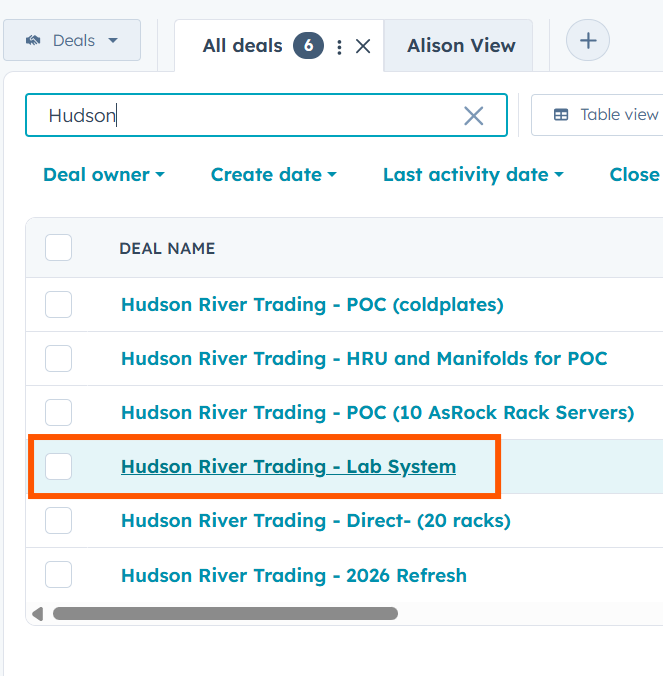
1. Navigate to Your Deal.
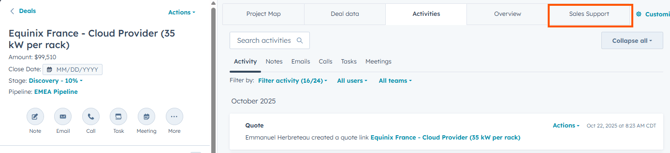
2. From the top tabs in the middle of your deal page, select "Sales Support": Sometimes hidden under "More" tab.
3. Select "+Add" to create your quote request. You will see your quote ticket progress on this view as well.

4. Type "Quote" in Ticket Name: You can also add more description such as the quote + deal name.
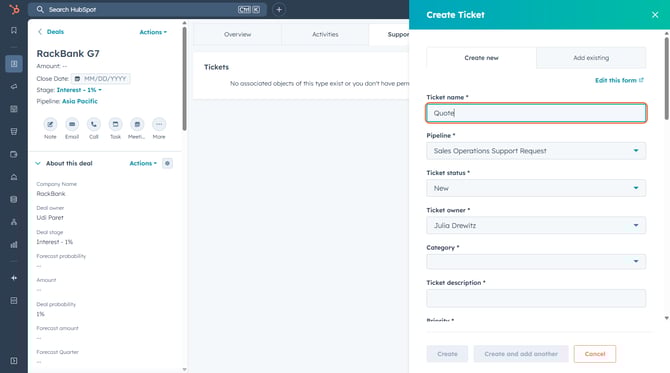
5. Click on Category and Select "Quote": dependent categories will appear such as PO Issuer Name, Contact Name, and End Customer Name. These details must be completed whenever a third party is involved in the transaction—for example, if Park Place is issuing the Purchase Order on behalf of an end customer they support, such as Chicago University. Providing this information ensures the quote accurately reflects both the billing entity and the final service recipient.
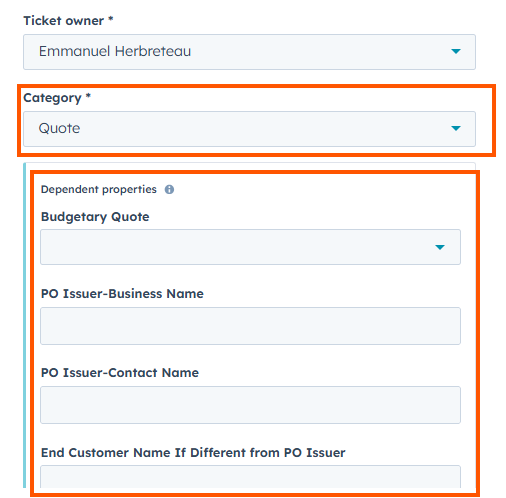
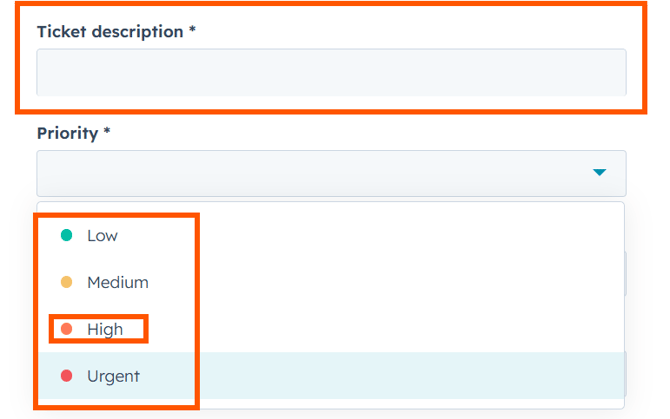
6. Fill Out the Remaining Ticket Details: Continue filling out the quote ticket form. When you get to Ticket Description, please include any extra details that will help Sales Operations process your request. For example, mention specific customer needs or any unique circumstances. When you reach the Priority field, always choose "High," as all quote requests are considered urgent.
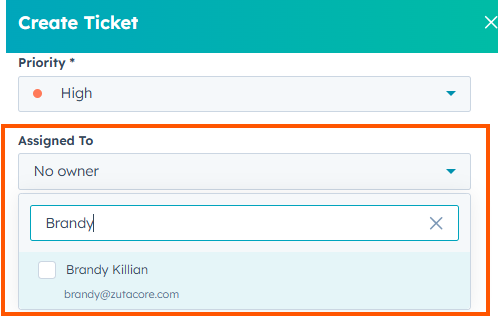
7. Assign the Ticket: In the "Assigned To" field, type "Julia Drewitz" or other Relevant Sales Ops Team members so they are notified of the request.
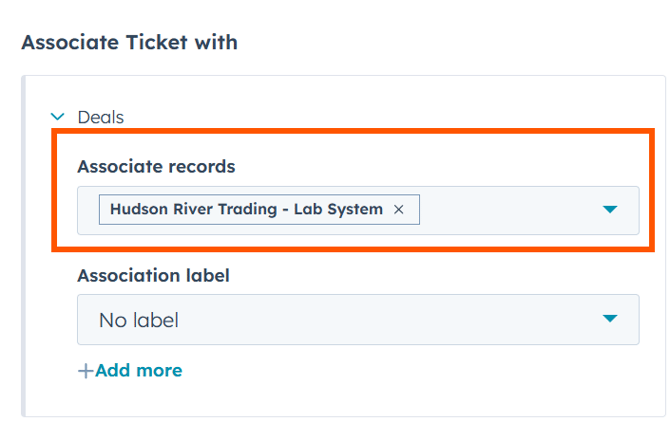
8. Associate Ticket With: The ticket will automatically log on your deal, so there is no need to do anything with these fields.
9. Create the Ticket: The final step is creating the ticket by selecting the "Create" button below.
10. Locating Your Ticket: You can track the real-time progress of your quote request directly on the Deal record. Simply navigate to the Sales Support tab to view the status and any updates related to your ticket. You will also receive email updates.
11. Marking a Deal as Close/Won: Once a deal has been successfully completed, once the Purchase Order (PO) has been issued. .png?width=670&height=503&name=Untitled%20design%20(5).png)
What Happens Next
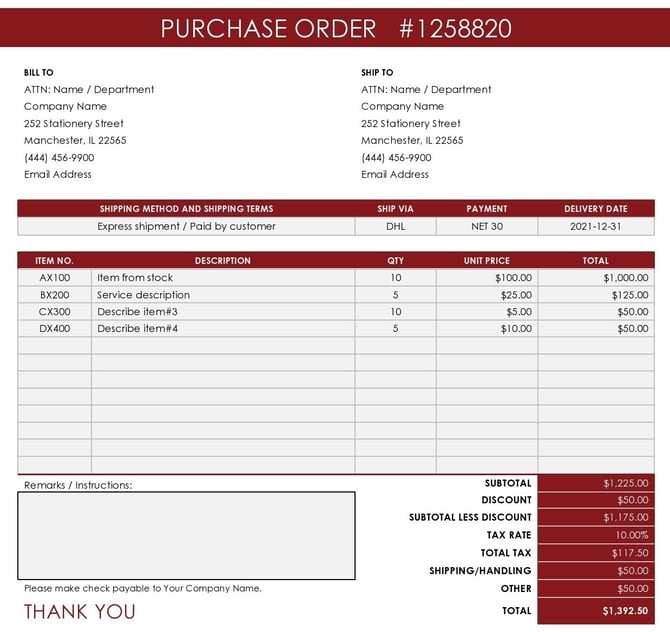
Once the PO, Purchase Order, has been issued, the deal has been marked as "Close/Won", the Revenue Operations team will determine if a new customer form needs to be issued, and will process the PO with our Operations team. See below for an example of a purchase order. No quote needs to be signed.
If you are aware that a deal is likely to be "Close/Won", a New Customer Form, can be issued ahead of receiving the PO.
A Purchase Order (PO) is a formal "promise to pay" document that the customer generates on their end.