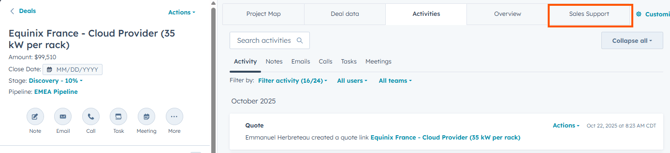
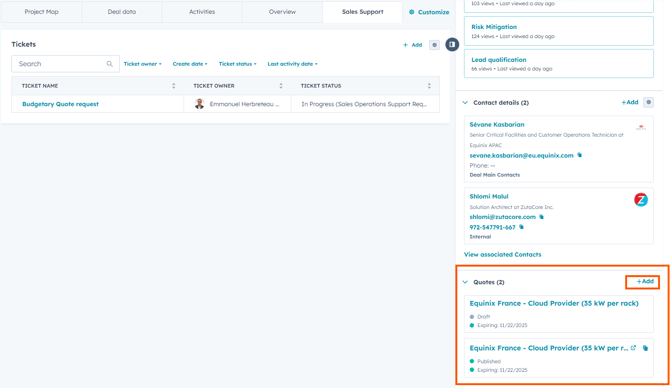
2. Submit a Budgetary Support Request Ticket: Select "+Add" to create your quote request. You will see your quote ticket progress on this view as well

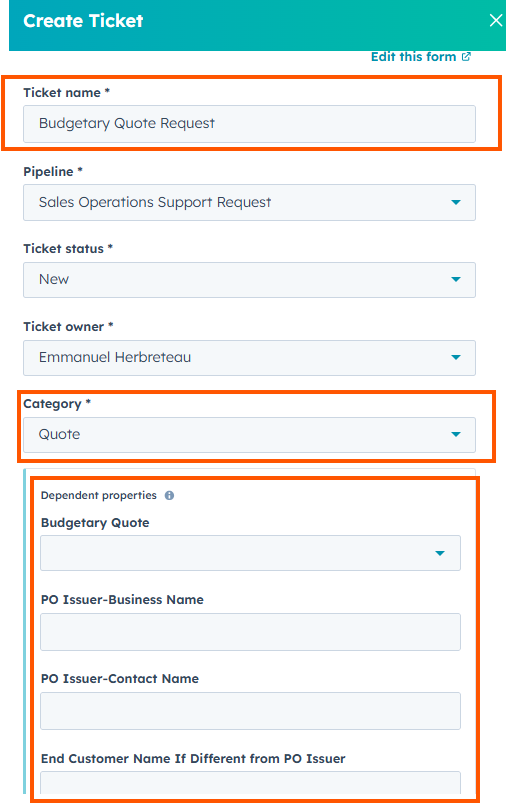
3. Complete the Ticket Details: Create Budgetary Quote Request Name, and fill in the following details
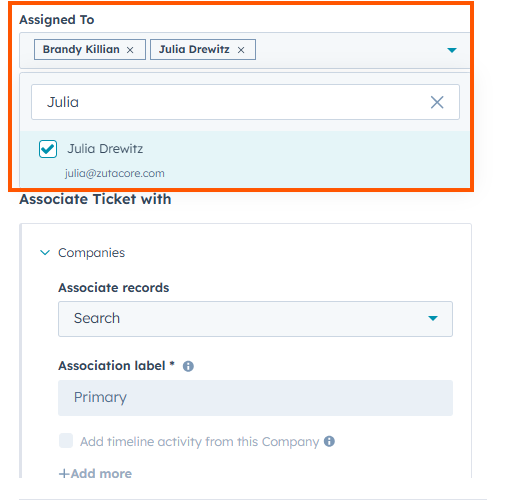
4. Notifying Sales Ops: To ensure immediate notification and processing, please assign the quote request ticket to both the Sales Operations team before submitting
5. Initiate Quote Creation and Review Line Items: Navigate to the Quote Section on the Deal page and select "+Add" to begin a new quote. Before proceeding to the next step, please carefully review all line items (products, pricing, and terms) for accuracy
6. Review Buyer and Contact Information: A new page will open with your request. Review Buyer information on the left side of the screen. If contacts are linked to the deal, they will automatically populate
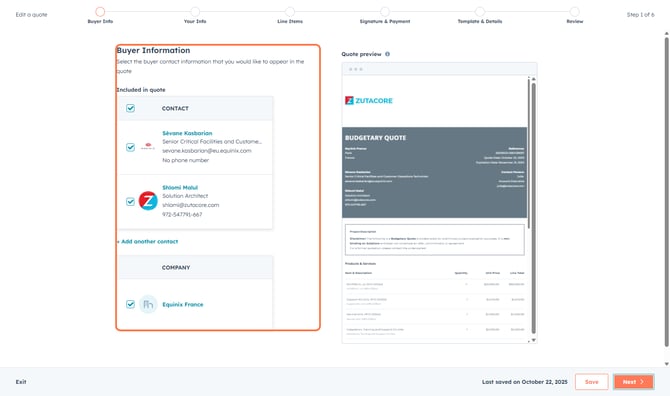
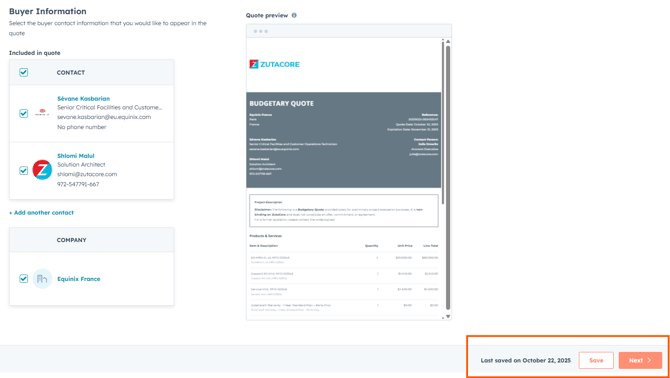
7. Click on Next: After initial review, select "Next" on the bottom right of the screen to continue
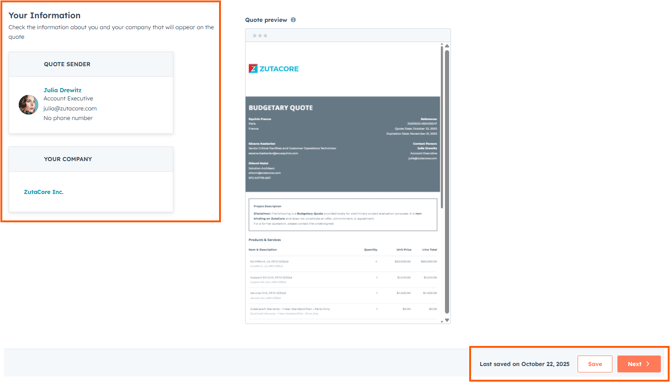
8. Review Your Information: Review your contact information section to ensure everything is correct before proceeding
9. Click on Review the line items
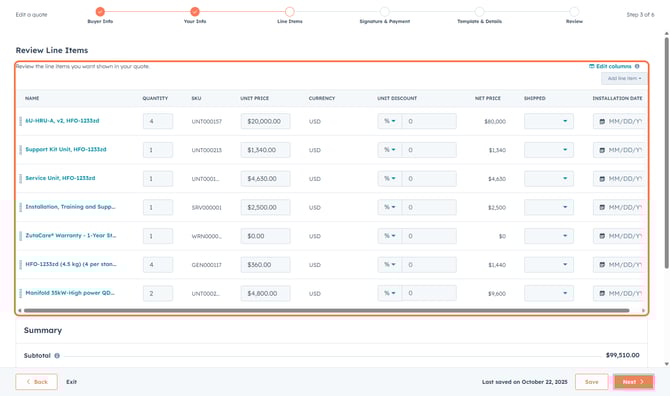
10. Click on Next: Bottom Right Corner of the Page
.png?width=670&height=396&name=409f05b7-f82f-446a-ad93-1b45ca8405fd%20(1).png)
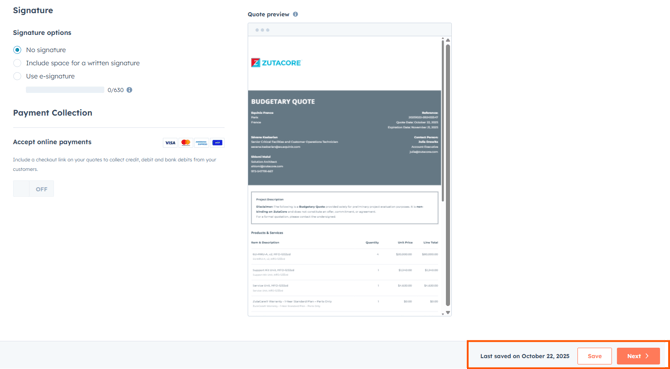
11. Signature Page: No Signature or Payment information will be required. Proceed by clicking "Next"
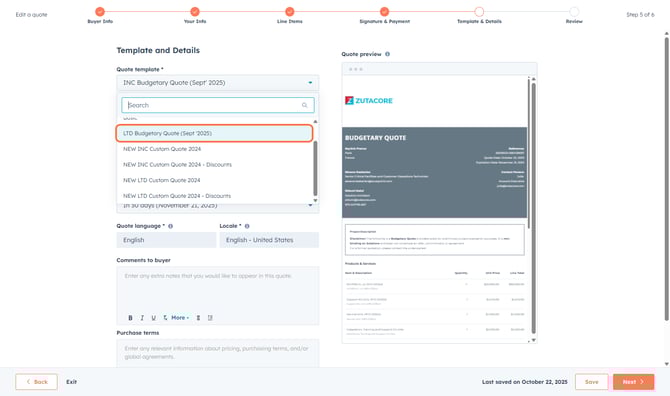
12. Choose the Correct Quote Template: Locate and select the correct quote template from the drop down menu. Reminder: Always use the most current version. INC. is the entity for the Americas region; LTD. manages all business operations for EMEA & APAC
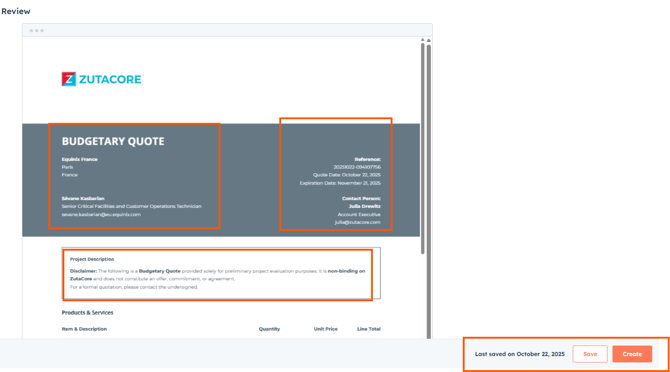
13. Review Your Quote and check with Sales Operations: Please finalize with Sales Operations before sending to Customer. Once Finalized, select "Create" in the bottom right corner. This will create a quote link or allow you to download the quote as a PDF file to manually email to the customer